Safe parent guidance

Choose the next useful step.

Use this page when you need to decide what to show first, what to hide, when to add more, and how to support communication without pressure.

Begin small

Choose the most important words first.

Personalize

Add or replace tile pictures where supported.

Grow gently

Add more choices when the child is ready.

Tablet support

Need help setting up the tablet?

Learn about iPad Guided Access, Android App Pinning, rotation settings, and resetting local app data.

Before the child uses the board

Parent Onboarding

Complete parent onboarding before the child uses the board. Use it to review the main adult controls, create or confirm the Parent PIN, and decide what the child should see first.

  • review what the app can support before handing it to the child
  • create or confirm the Parent PIN for adult-only controls
  • find the gear icon for parent settings
  • use the eye icon to manage visibility
  • use the edit or pen icon where picture customization is available
  • choose a Starter Level for how many sentence starters the child sees
  • find Help & Guide and My Information
  • choose what should be visible on the first child-facing board

Review first, then simplify

Before handing over the device, hide anything that is not needed yet. Hidden choices stay saved for later.
Caregiver setup

Choose a Starting Point

Before handing the app to the child, review the visible categories and tiles. Choose a starting layout based on what the child needs to say most often and which routines need support first.

If the board feels busy, hide extra categories or tiles. Starting with fewer choices does not limit the child; it gives the child a predictable place to begin.

Hidden items are not deleted. Review them later and show them again when they become useful.

Essential Communication

Help, stop, bathroom, break, food, drinks, family, yes/no, more, and all done.

Daily Communication

Needs, emotions, routines, activities, school, favorite people, and familiar items.

Expanding Communication

More categories, Social Scripts, self-advocacy, tile picture personalization, and school supports.

Free Expression

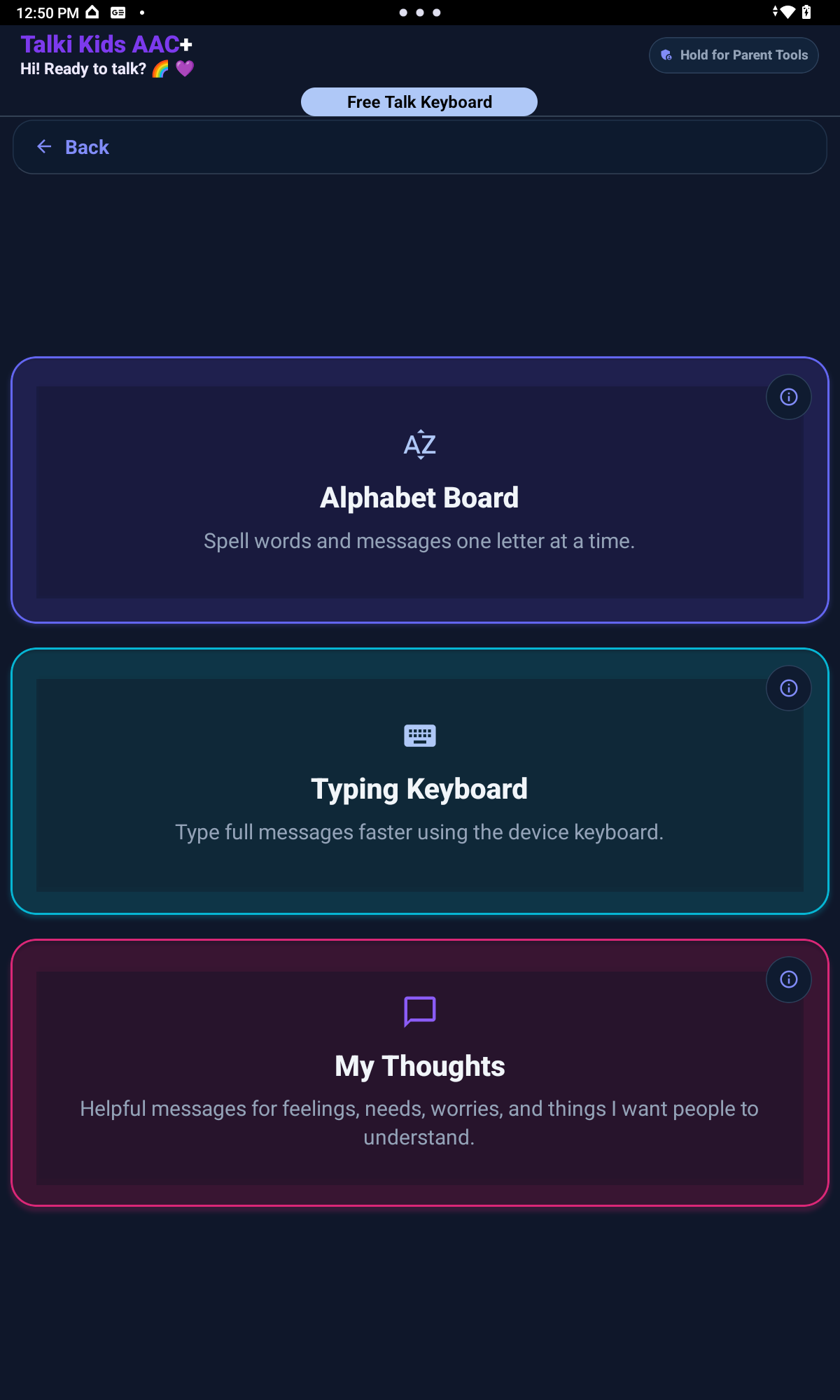
Free Talk, My Thoughts, Alphabet Board, Typing Keyboard, Quick Words, Auto Suggestions, and custom messages.

Talki Kids AAC+ is designed especially for children ages 3–14. Younger children or children just starting can begin with simple picture choices, fewer categories, and fewer visible tiles.

As the child grows, the same app can support more detailed communication with Social Scripts, Free Talk, My Thoughts, typing, spelling, and speech output, depending on the child’s communication needs, comfort, and the support they receive from adults.

Age is not a strict rule. Choose the tools, categories, and visible tiles that fit the child right now.

1

Start Simple

Do not show every category or tile at first. Start with a smaller board that is easy to scan.

Begin with the most important communication needs, such as help, stop, bathroom, break, food, drinks, and family. Add more only when the child is ready for more choices.

Starting point, not a limit

A smaller first board is a setup choice, not a limit. You can show more choices later.

2

AAC Picture Board Basics

Use categories to keep related words together. Use tiles when the child needs a clear picture choice.

A selected tile can be combined with a starter and spoken aloud. Model one short message at a time.

3

Categories and Tiles

Use categories for the areas the child needs today. Examples include:

NeedsFoodDrinksFamilyEmotionsSchoolActivitiesDaily RoutineSocial ScriptsFree Talk
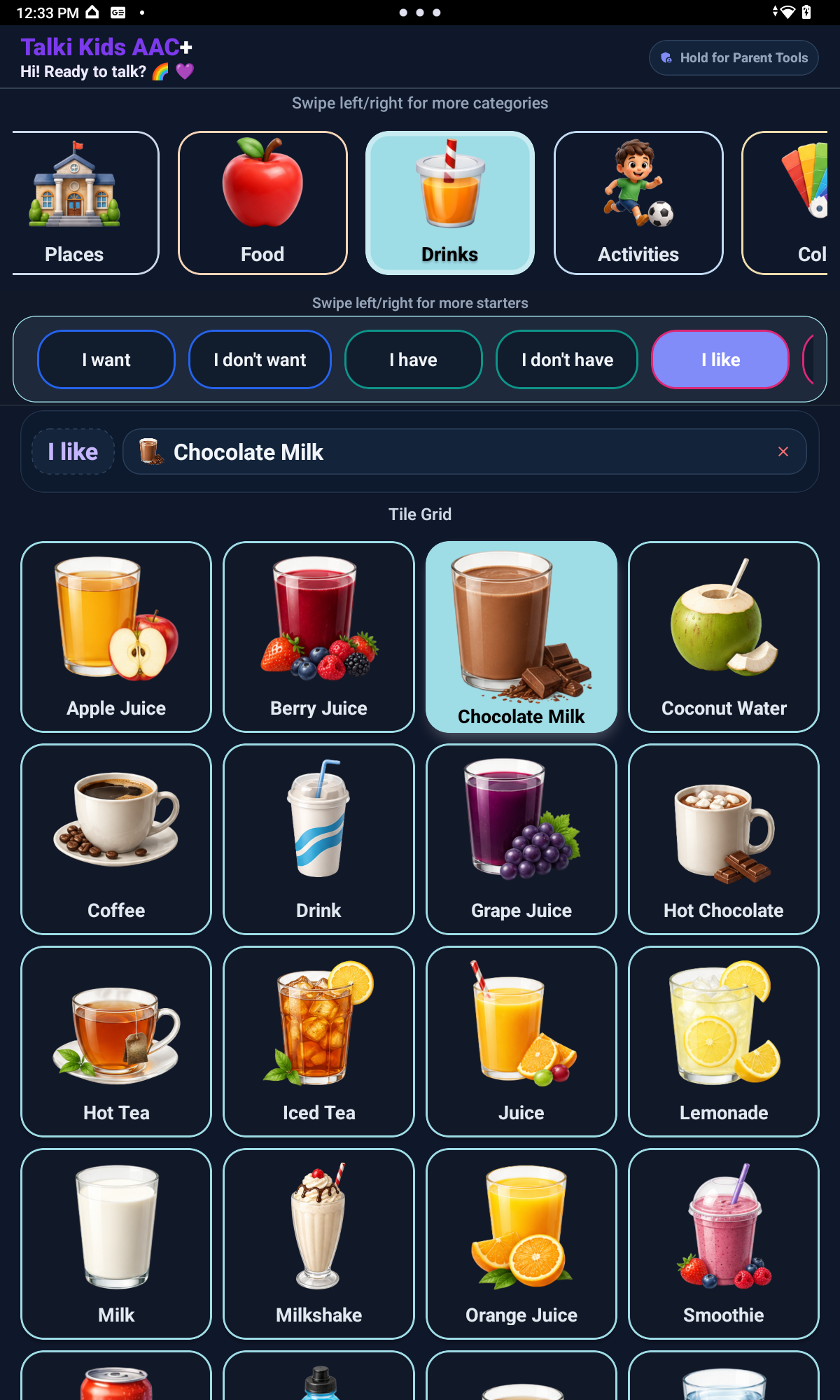
Talki Kids AAC+ Drinks category with visual communication tiles
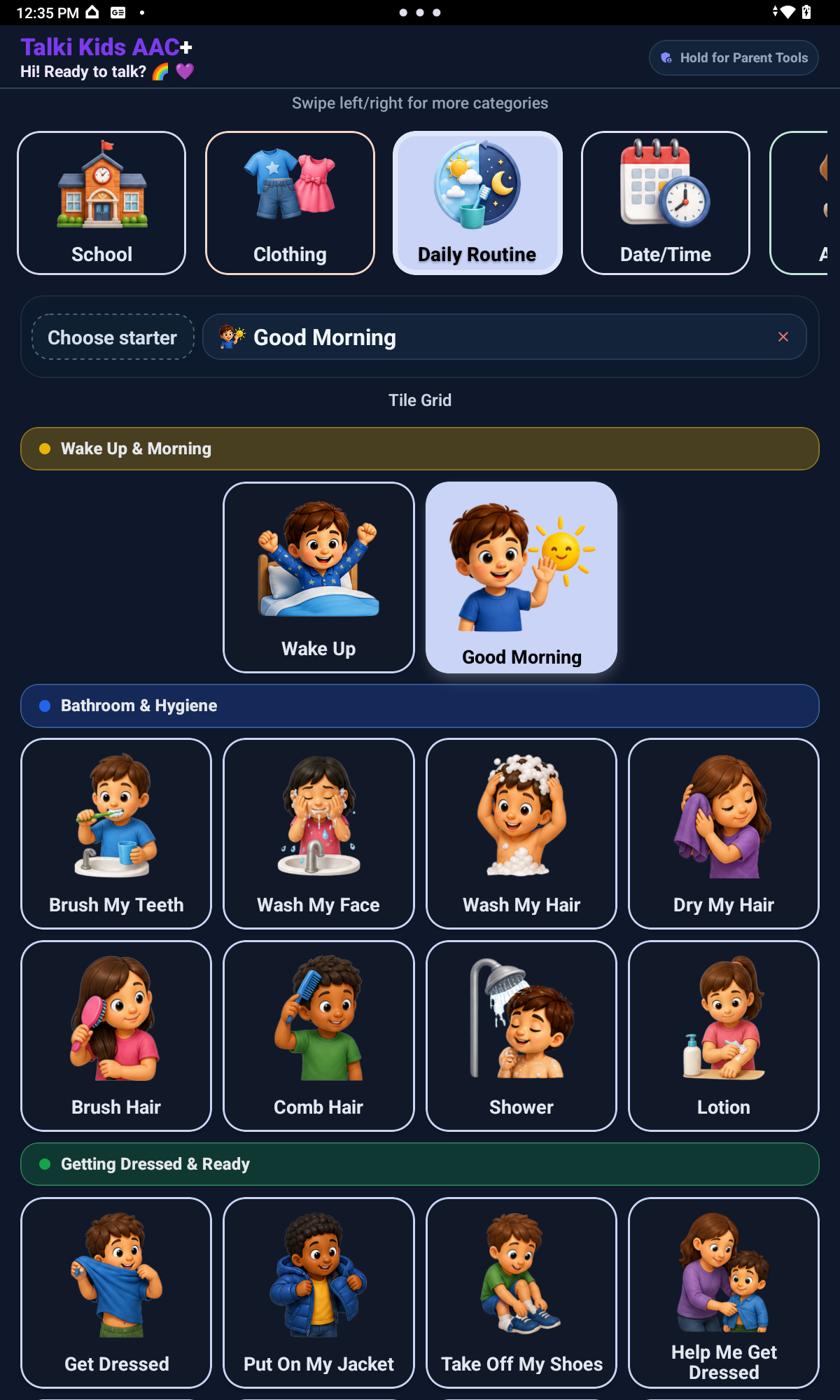
Daily Routine AAC picture board with visual routine support tiles
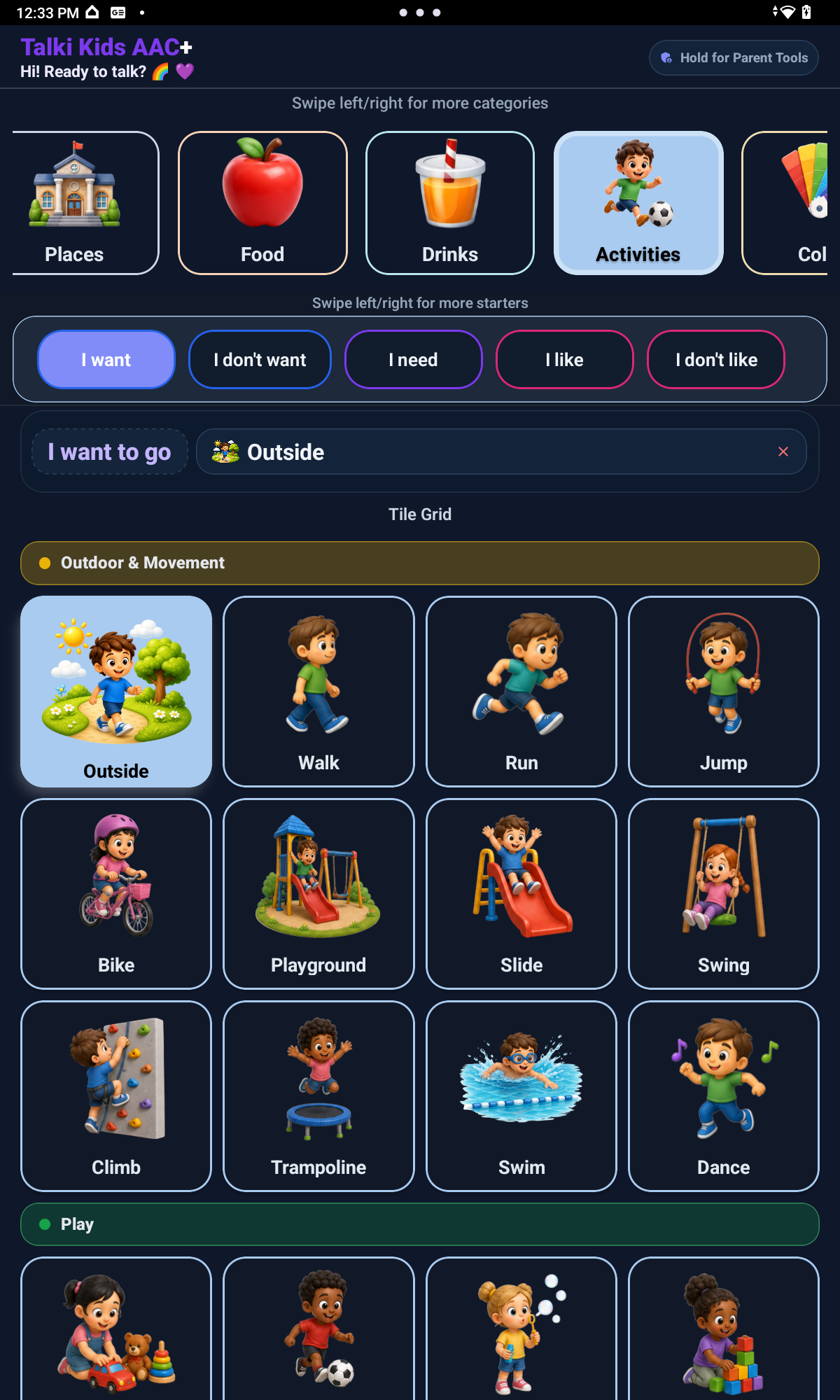
Activities AAC picture board showing sentence starters and activity tiles
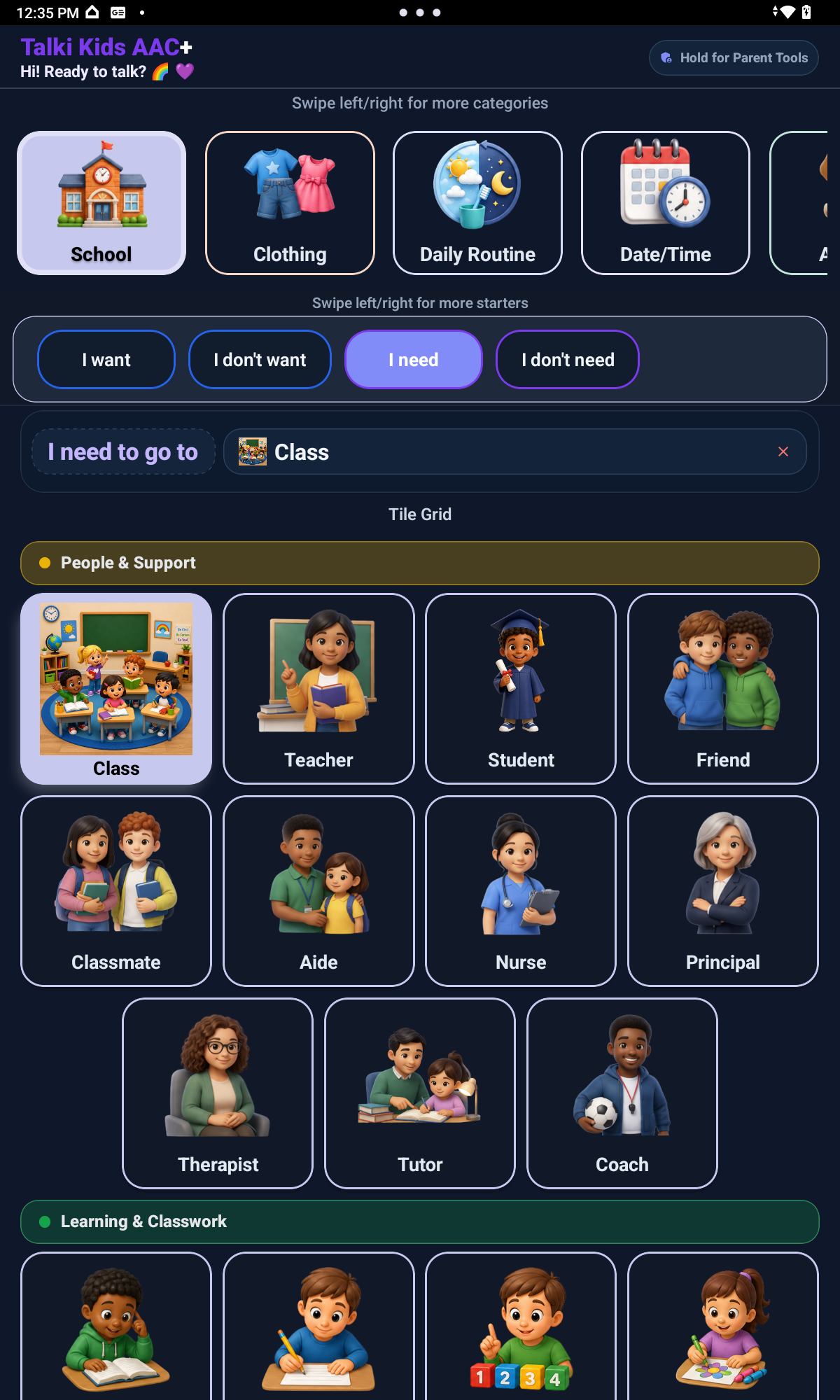
Talki Kids AAC+ School category with classroom support tiles

If a category is not useful yet, hide it and review it later.

3a

Soft Group Separators

Some categories include soft section headers that gently group related tiles. These headers help children and adults scan the page without changing how the tiles work.

SchoolActivitiesNeedsDaily Routine

Keep the wording simple when you model these areas. The goal is easier scanning, not extra rules for the child to learn.

4

Sentence Starters

Use sentence starters when the child is ready to build a longer message. A parent might model one starter at a time, such as:

I wantI needI feelI seeI haveI canIt's my

Starters are category-aware, so the child sees starters that fit the current category or tile instead of every starter at once.

Parents can also use Starter Level to decide how many starter choices the child sees.

Needs and body-related communication

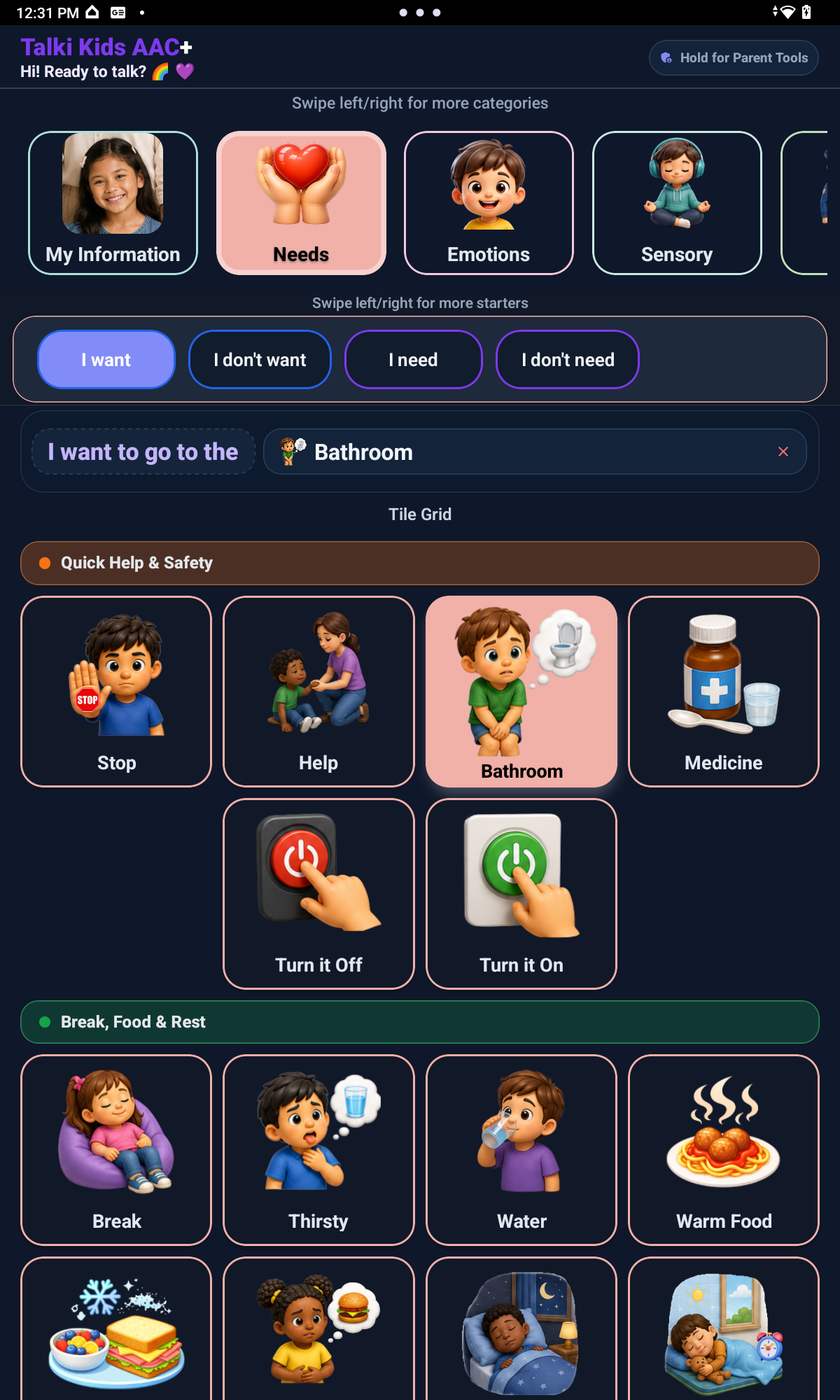
Keep body-related needs easy to find, especially pain, discomfort, help, bathroom, water, and break messages.
Needs AAC picture board with self-advocacy and support request tiles

4a

Parent-Controlled Starter Levels

Every child communicates differently. Starter Level lets parents choose how many sentence starters the child sees, so the board can stay simple at first and grow when the child is ready.

  • Simple Start: fewer starter choices for children who are beginning or who get overwhelmed
  • Growing Sentences: adds more choices for communication practice
  • Complete support: full sentence starter support for children ready for more expression

Starter Level is not based only on age. Parents can adjust it based on the child's communication needs, comfort with the app, and adult support. A 10-year-old may still need Simple Start, and a 5-year-old may be ready for Growing Sentences.

Start simple, then grow

Choose the smallest useful starter set first. Add more when the child is ready for more expression.

4b

Text-to-Speech and Speech Output

Use speech output after the child selects, types, spells, or chooses a prepared message. Then respond to the message, not just the sound.

AAC picture boardSocial ScriptsFree TalkAlphabet BoardTyping KeyboardMy Thoughts

Model it simply: tap a message, let it speak, and respond naturally.

5

Hide or Show Categories and Tiles

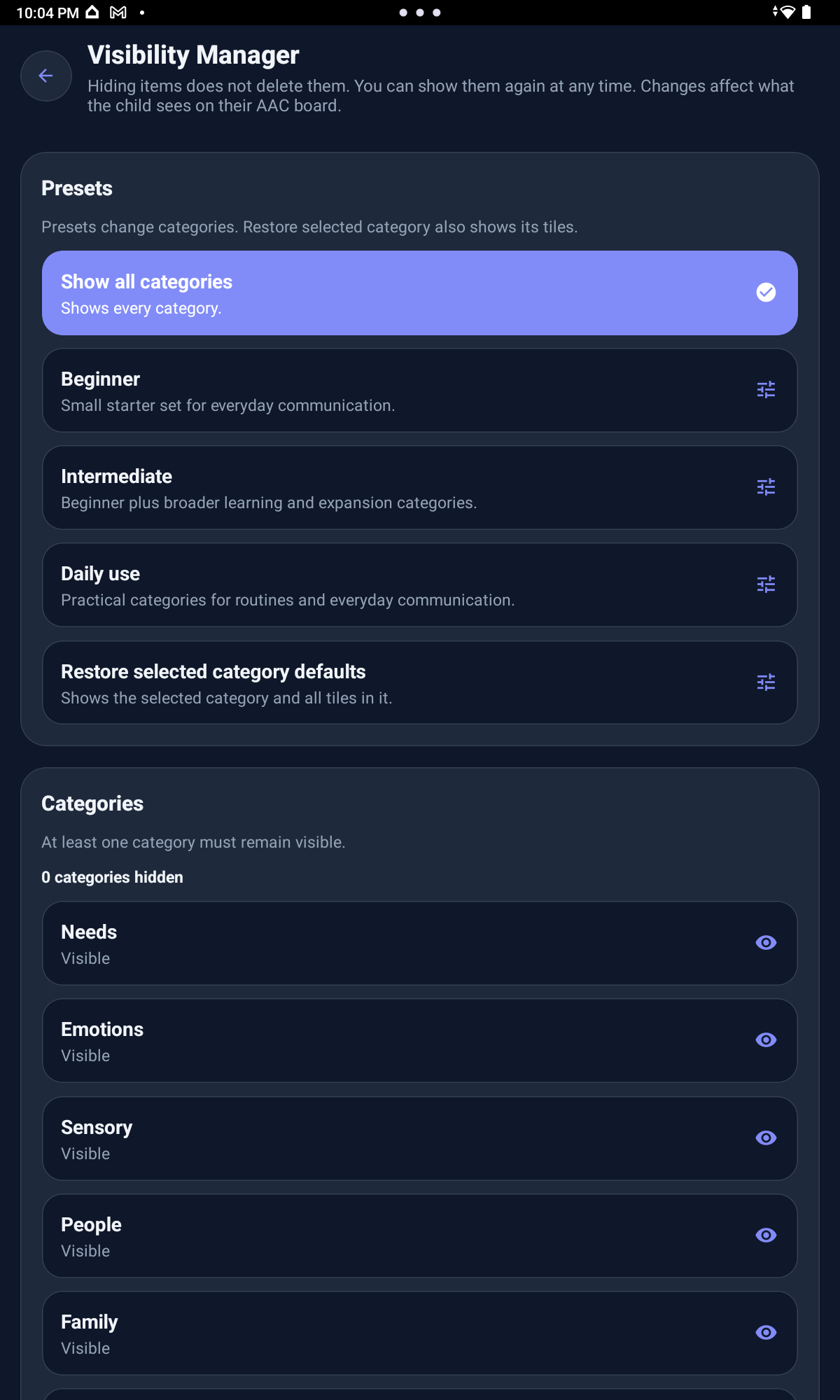
Start with fewer choices, then add more when your child is ready. Visibility Manager lets parents hide or show full categories and individual tiles. Hidden items are not deleted and can be restored later.

Keep urgent needs visible. Bring hidden items back when they become useful.

Why this helps

A smaller board can be easier to scan during meals, transitions, school routines, or moments when the child is tired.
Visibility controls for showing or hiding board information

6

Add More as the Child Grows

Add one useful area at a time. Review what is hidden before adding a large new set of choices.

First

help, stop, bathroom, break, food, drinks, family

Next

feelings, school, routines, activities

Later

Social Scripts, Free Talk, My Thoughts, typing, spelling

Setup path

Suggested Setup Path for Parents

Use this as a starting path. Pause at any step until the child is ready for more.

  1. 1Complete onboarding and review the parent controls.
  2. 2Create a Parent PIN and Recovery Phrase before handing the app to the child.
  3. 3Start with essential categories such as Needs, Food, Drinks, Family, and simple yes/no choices.
  4. 4Choose a Starter Level: Simple Start, Growing Sentences, or the complete starter level.
  5. 5Hide categories or tiles that are not needed yet.
  6. 6Test a few useful phrases with the child in calm, familiar moments.
  7. 7Add School, Daily Routine, and Activities when they become helpful.
  8. 8Introduce Social Scripts for real situations the child is experiencing.
  9. 9Bring in Free Talk, Alphabet Board, Typing Keyboard, and My Thoughts when the child is ready for more open messages.

7

Add or Replace Tile Pictures

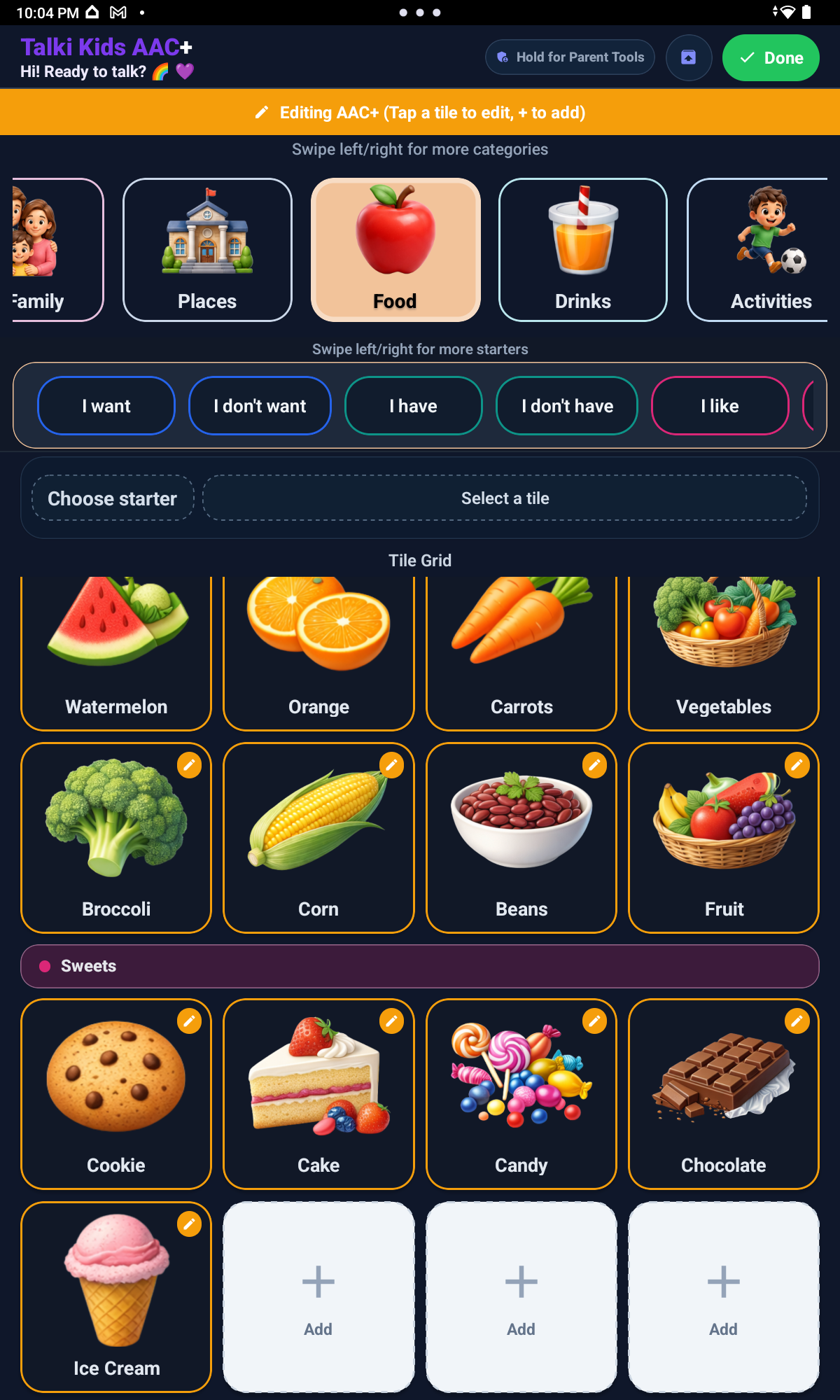
Parents can add custom tiles using the Camera or Gallery where supported, including familiar people, places, foods, drinks, animals, school items, activities, family roles, routines, and comfort objects.

family memberscaregiversfamiliar placesfoodsdrinksanimalsactivitiesfamily rolesfavorite toysreal school itemspetsfavorite cupcomfort objecthome routine itemsclassroom items

If no photo is added, supported custom tiles can use Talki Kids placeholder images instead of generic device emojis.

The editor is designed to feel parent-friendly. It shows only the current app language field, and Talki Kids helps choose the word type by category, so parents do not need to manage grammar settings.

Use clear, simple images. Avoid changing too many pictures at one time if the child is still learning the board.

Make the board recognizable

Start with the pictures most likely to help today, then add more as the child becomes familiar with the layout.
Talki Kids AAC+ Edit Tiles screen for customizing picture tiles
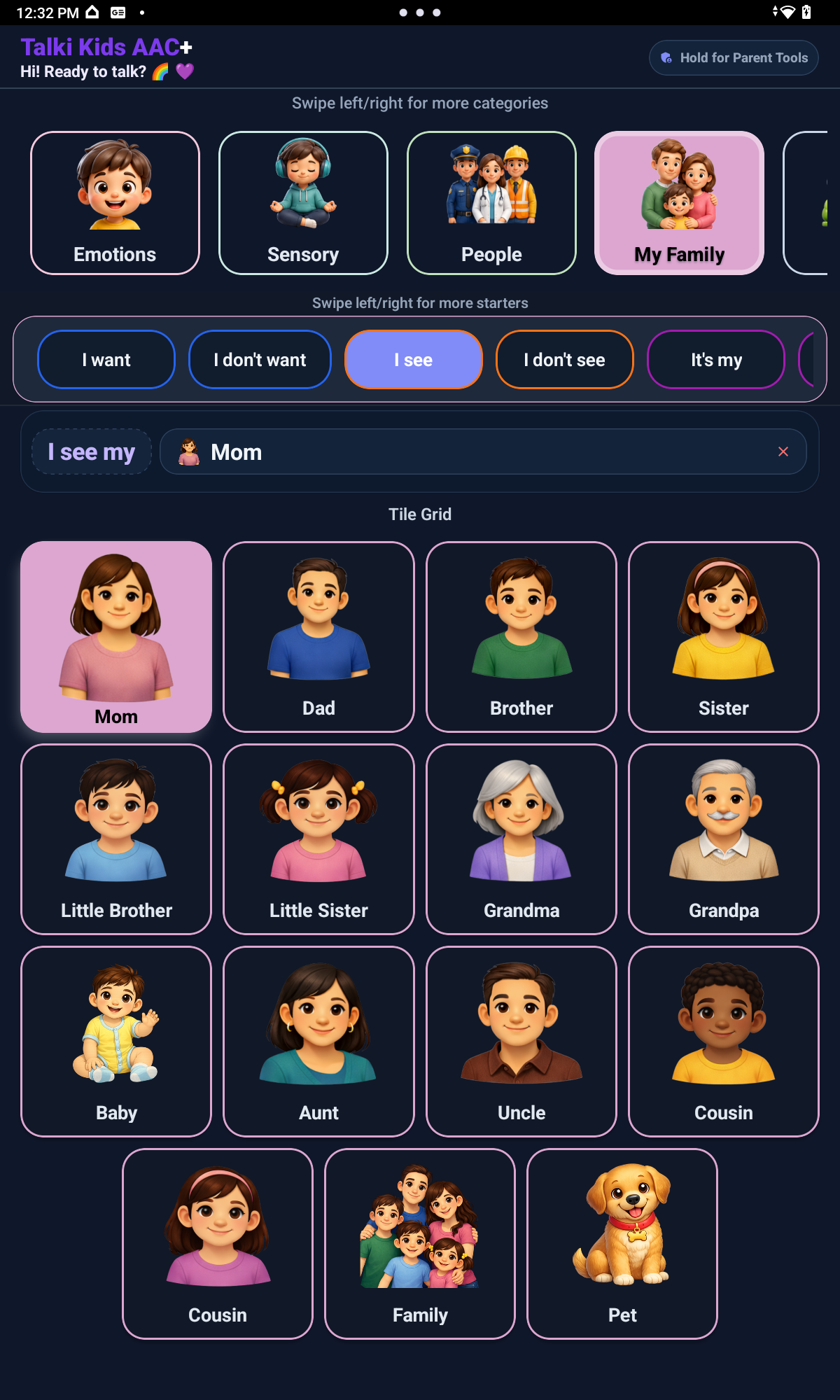
My Family demo screen with fictional family picture tiles
Caregivers can add or replace tile pictures so a child can identify close family members when helpful.

8

Social Scripts

Use Social Scripts for real situations such as greetings, play, school, friendship, feelings, safety, or repair phrases.

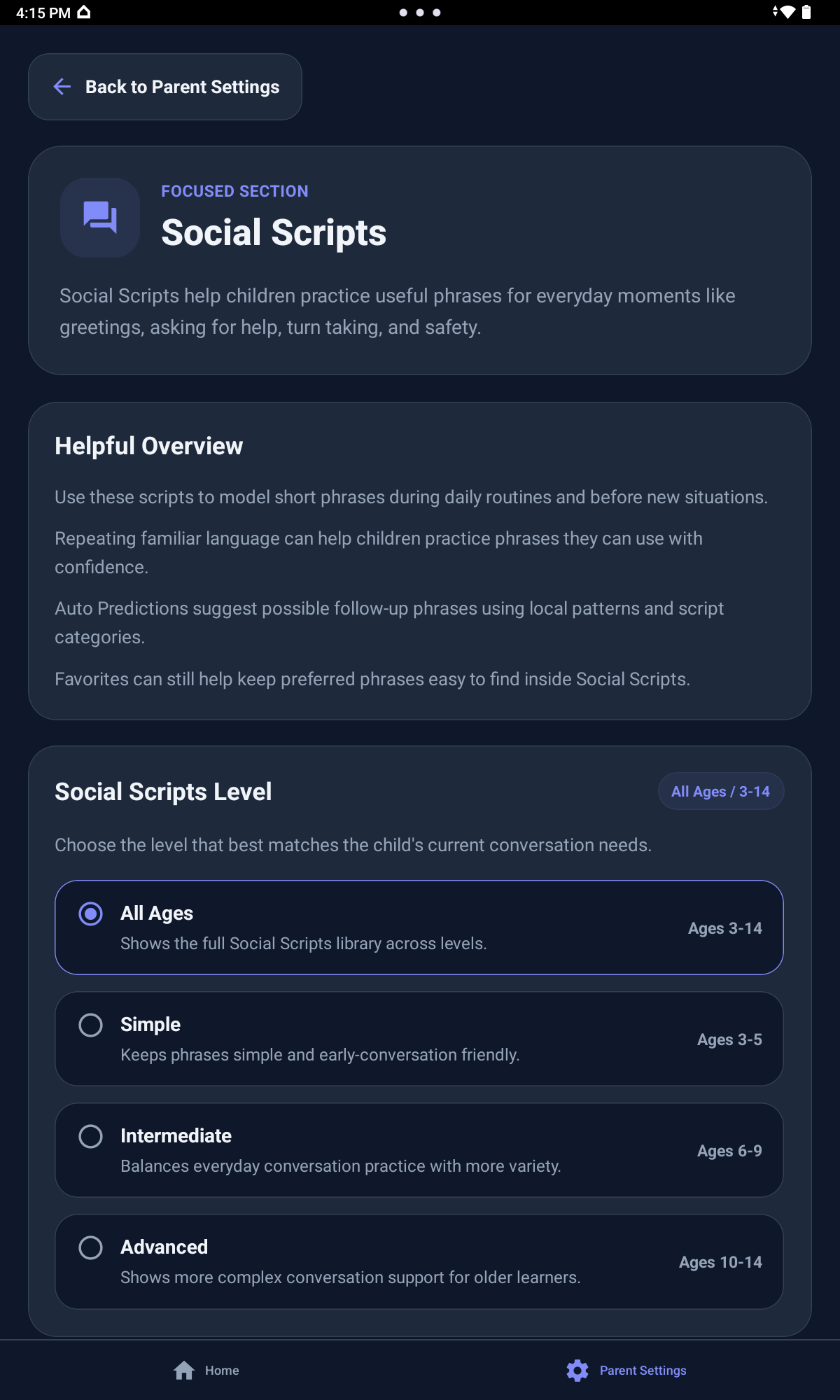
Choose the level that fits the child right now: All Ages, Simple, Intermediate, or Advanced. Check the level indicator before practicing.

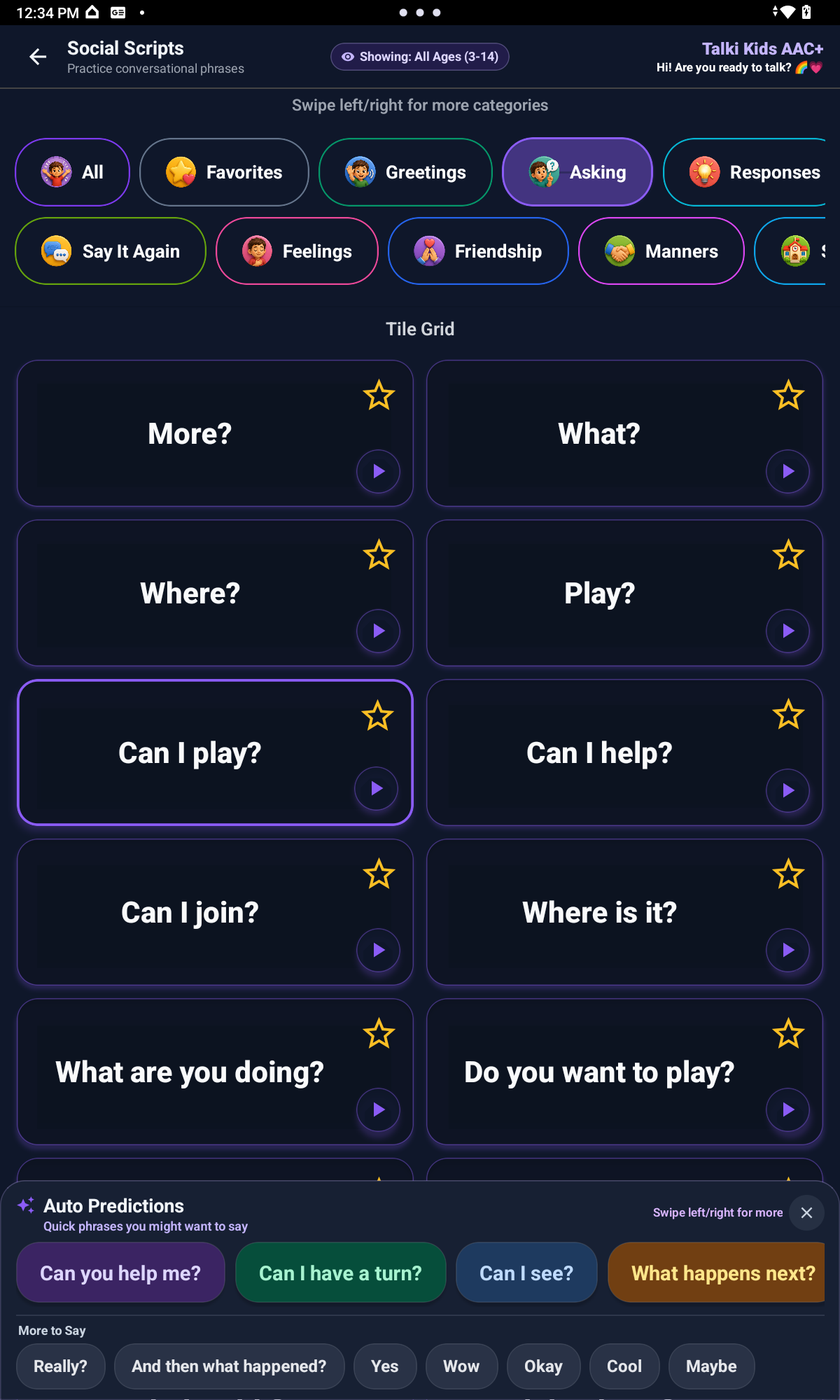
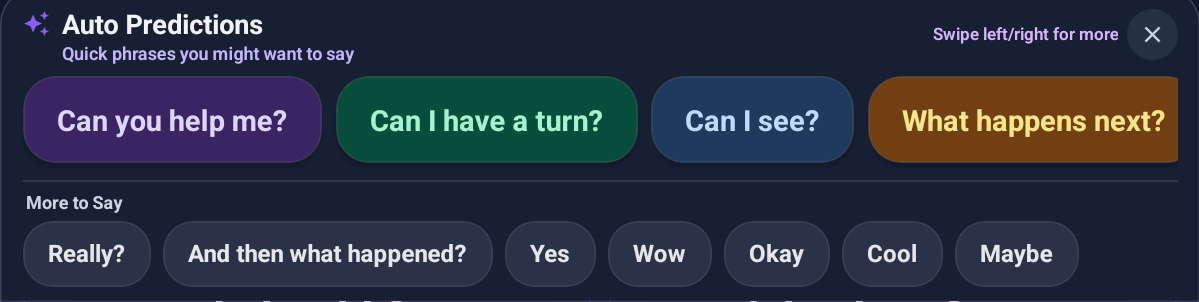
Helpful β€œMore to Say” prompts can appear after a child chooses a Social Script phrase. These follow-up suggestions support the next step in the conversation with less pressure while staying aligned with the selected Social Scripts level.

All AgesSimpleIntermediateAdvanced
Social Scripts screen with Auto Predictions and More to Say
Talki Kids AAC+ Social Scripts level selection screen

9

Social Scripts Auto Predictions

After a script is used, Auto Predictions may suggest possible next phrases. More to Say gives broader related ideas. The child or caregiver still chooses what fits the moment.

More to Say prompts can help children respond, ask for clarification, continue the exchange, or share what they need next.

Talki Kids AAC+ Auto Predictions and More to Say suggestions screen

10

Free Talk

Use Free Talk when the child needs a message that is not already on the picture board. It is a good place for specific names, places, requests, or custom thoughts.

Free Talk Keyboard screen for custom communication

11

Alphabet Board

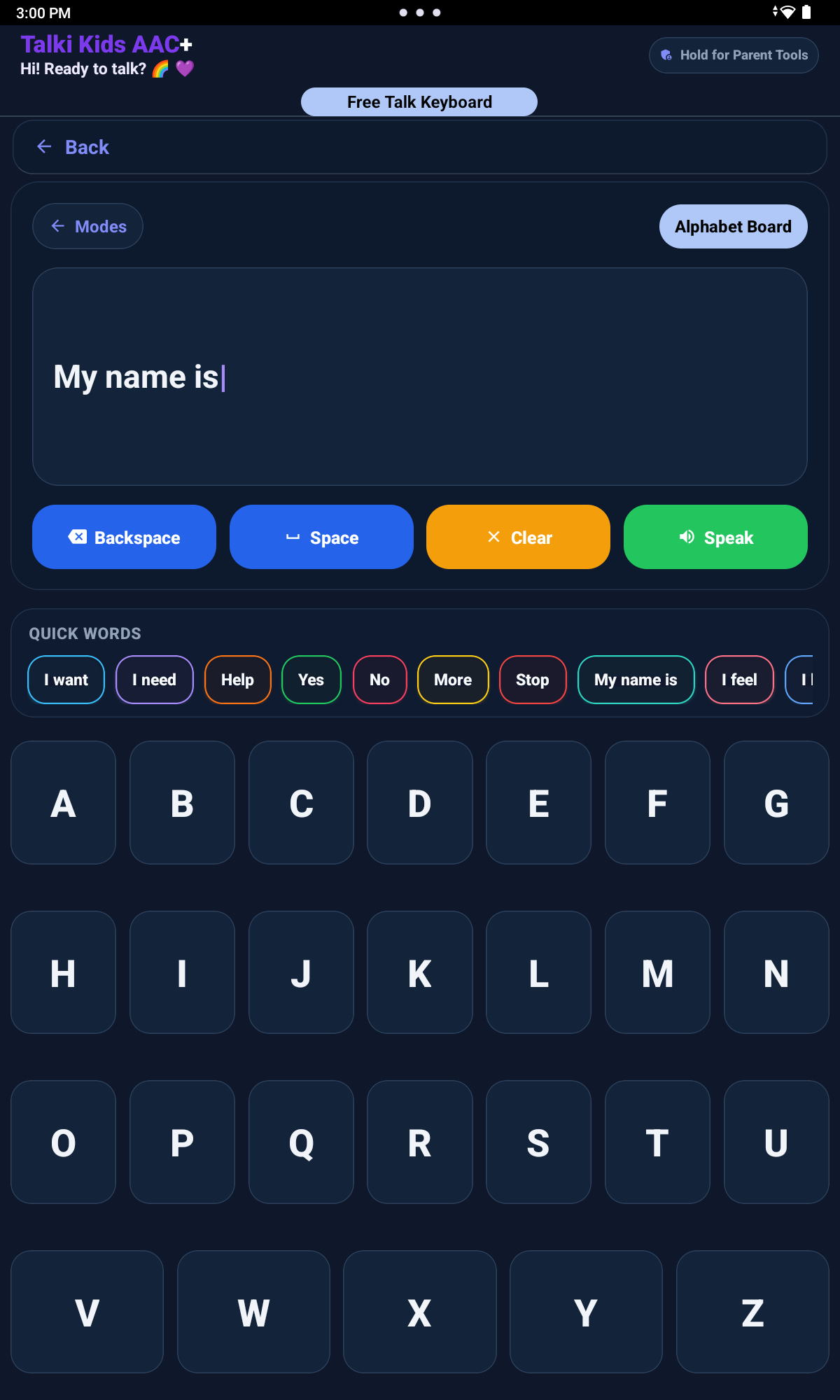
Use the Alphabet Board when spelling is part of the child's communication. Give enough time for letter-by-letter messages.

Alphabet Board with letter-by-letter spelling support

12

Typing Keyboard

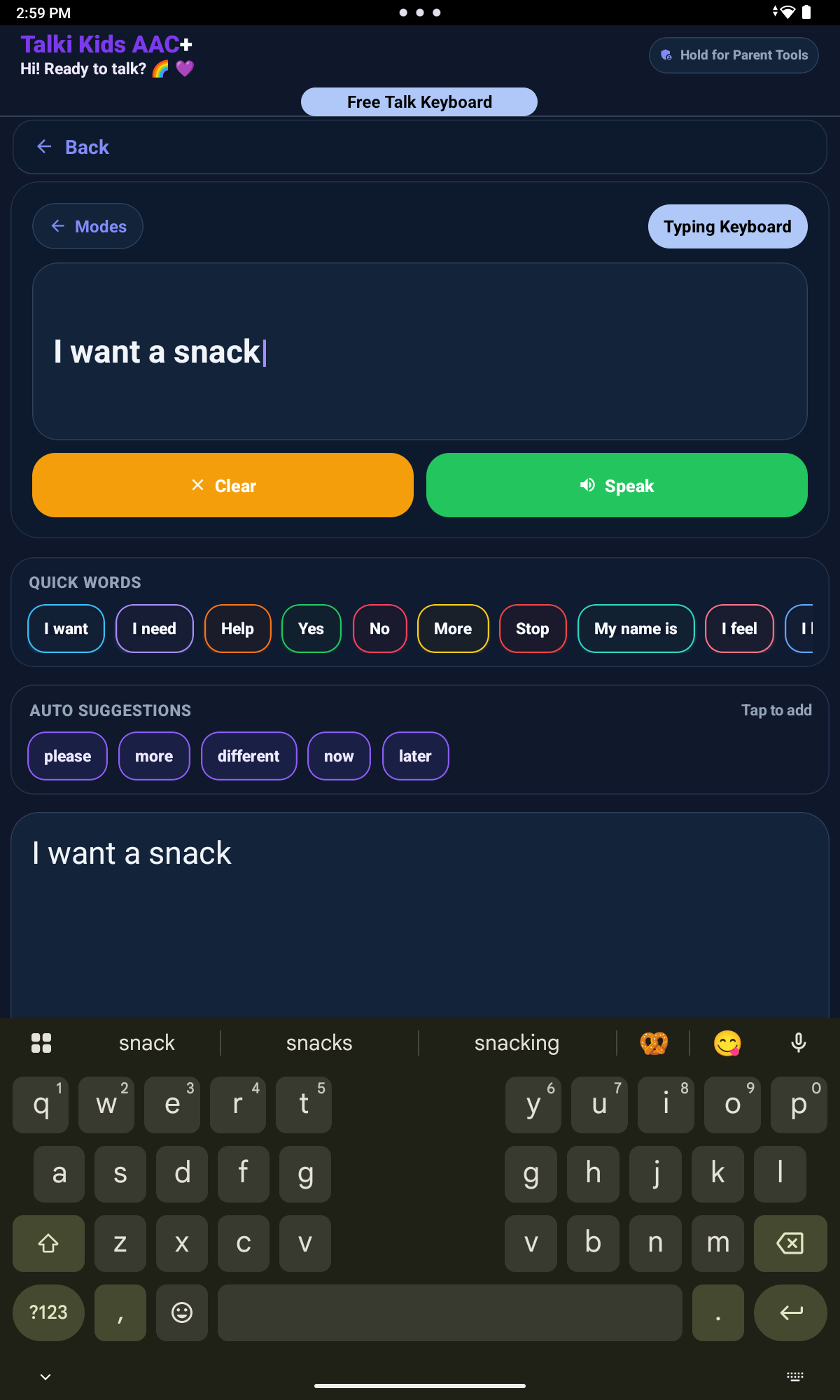
Use the Typing Keyboard when the child or caregiver needs a typed message that can be spoken aloud.

Talki Kids AAC+ Typing Keyboard with quick words and speech controls

13

Quick Words and Auto Suggestions

Use Quick Words to start common messages faster. Use Auto Suggestions as optional ideas, then choose only what fits.

Talki Kids AAC+ Auto Predictions and More to Say suggestions screen

14

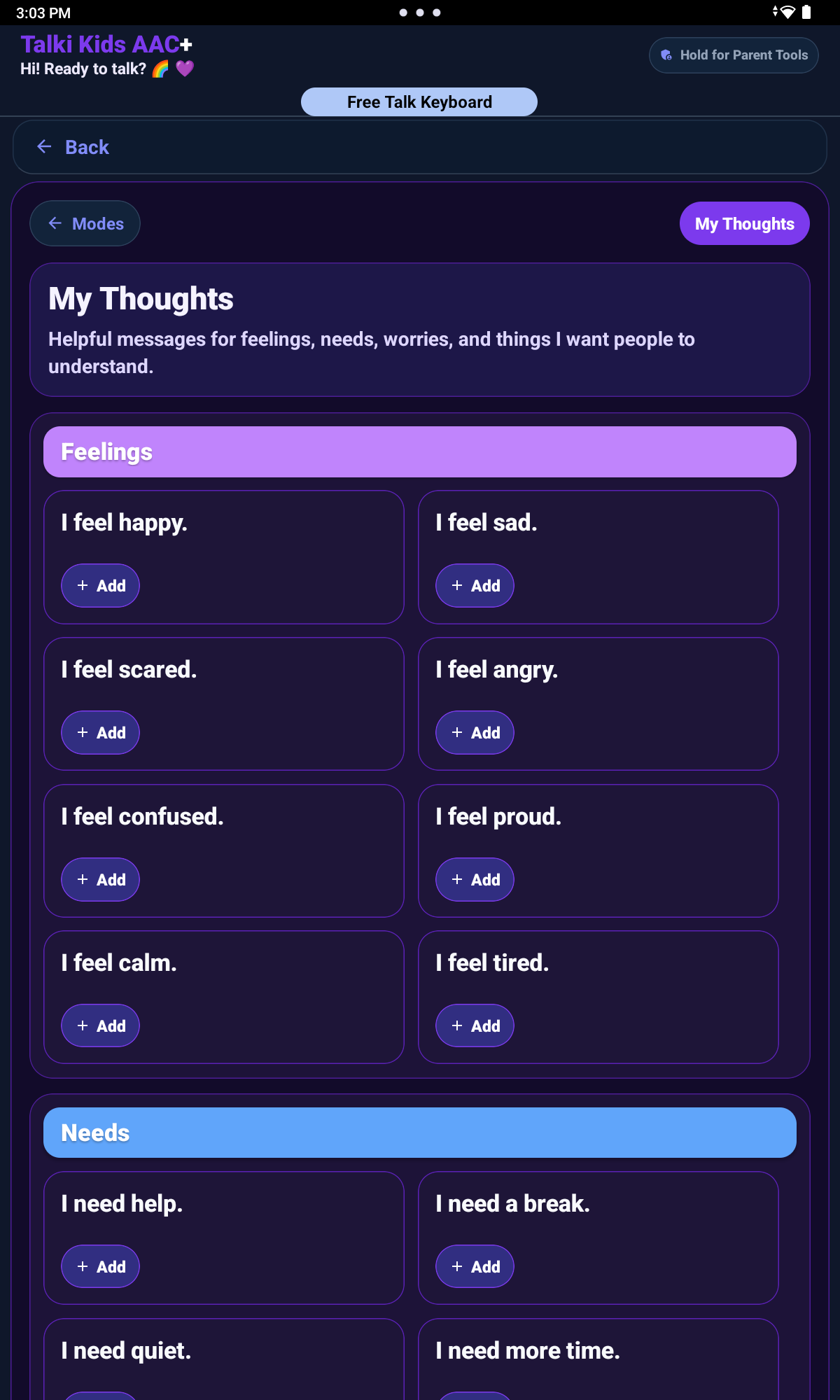
My Thoughts

Use My Thoughts for prepared messages about feelings, pain, worries, preferences, and self-advocacy. Examples include:

  • I need more time.
  • It is too loud.
  • Please listen to me.
  • I am not done.
  • My voice matters.
My Thoughts screen with saved personal messages

15

School Support

Use School Support for classroom needs, teacher, aide or nurse support, supplies, restroom breaks, water, help, breaks, and routines.

Talki Kids AAC+ School category with classroom support tiles

For school and therapy teams

Suggested Setup Path for Teachers and Professionals

Use this path when teachers, therapists, aides, or other school adults will support the child with the app.

  • Learn where key school phrases are before using the app with the child.
  • Give wait time after the child looks, reaches, taps, or starts a message.
  • Accept an AAC message as communication and respond to its meaning.
  • Do not rush the child or move the device away during communication.
  • Confirm the message in simple language.
  • Help the child access the device when positioning, attention, or transitions make it hard.
  • Use consistent phrases across classroom routines.

16

Daily Routine

Use Daily Routine for morning, hygiene, getting dressed, getting ready, bedtime, and transitions.

Daily Routine AAC picture board with visual routine support tiles

17

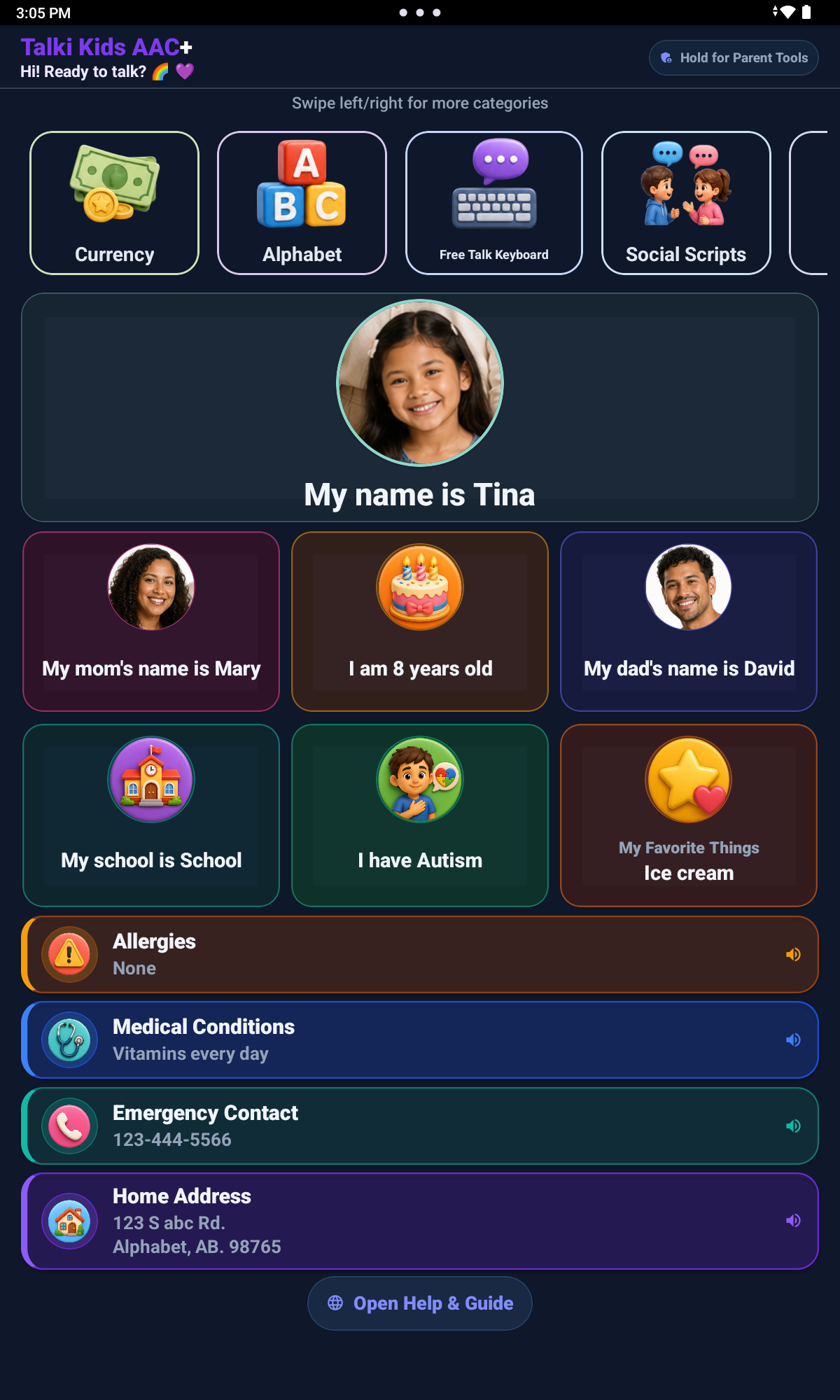
My Information

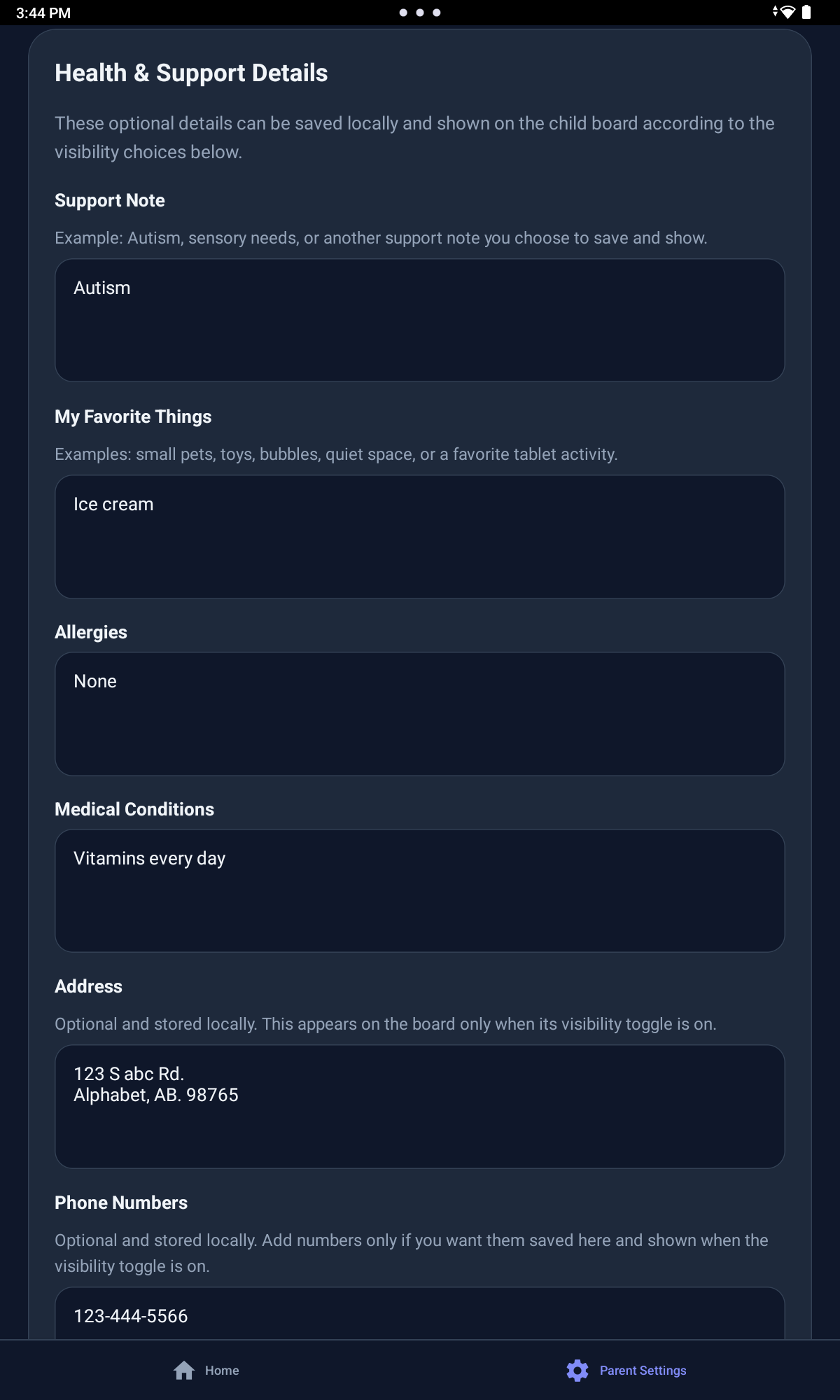
My Information is optional. Enter only details you are comfortable storing on the device.

Caregivers choose what to enter and what to show. Phone number and address fields are optional and should only be shown intentionally.

My Information demo screen with optional child support details
Optional child support information that caregivers choose, control, and update.
Health Information screen with optional support details
My Family demo screen with fictional family picture tiles
Personalized tile pictures can help a child identify close family members when needed.

18

Parent Settings and Parent PIN

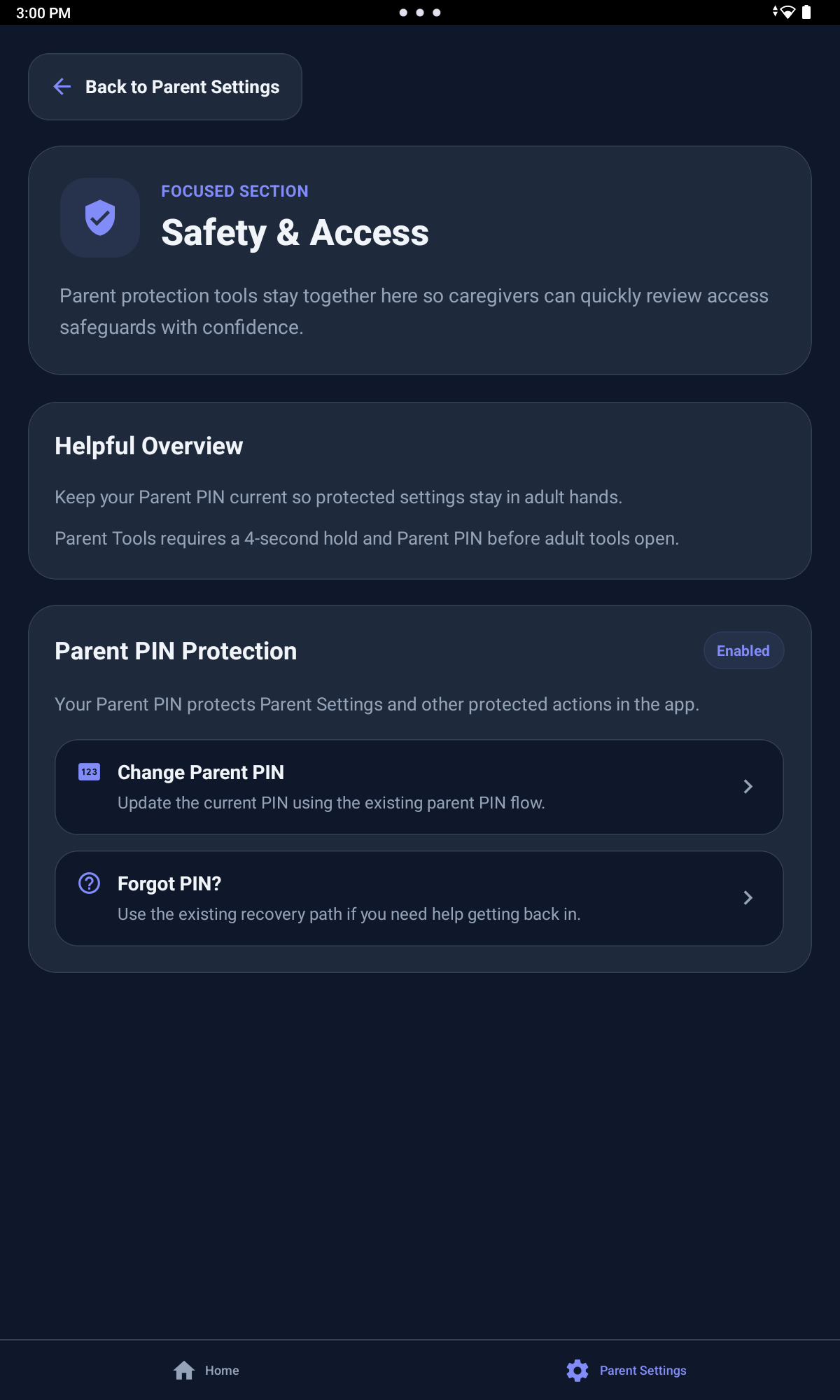
Parent Tools are protected behind a 4-second hold and Parent PIN. From the Parent Tools menu, adults can access Settings, Visibility Manager, Edit Tiles, and Starter Level while keeping those controls away from the child-facing board.

Parents can create a Recovery Phrase to help reset the PIN if it is forgotten.

  • settings and safety/access options
  • visibility choices for categories and tiles
  • editing tools for adding or replacing tile pictures
  • Starter Level choices for sentence starters
  • adult-only changes that could make the board less predictable

Use the gear icon to find parent settings, the eye icon to manage visibility, the edit or pen icon where customization is available, and Starter Level when the child needs fewer or more sentence starters.

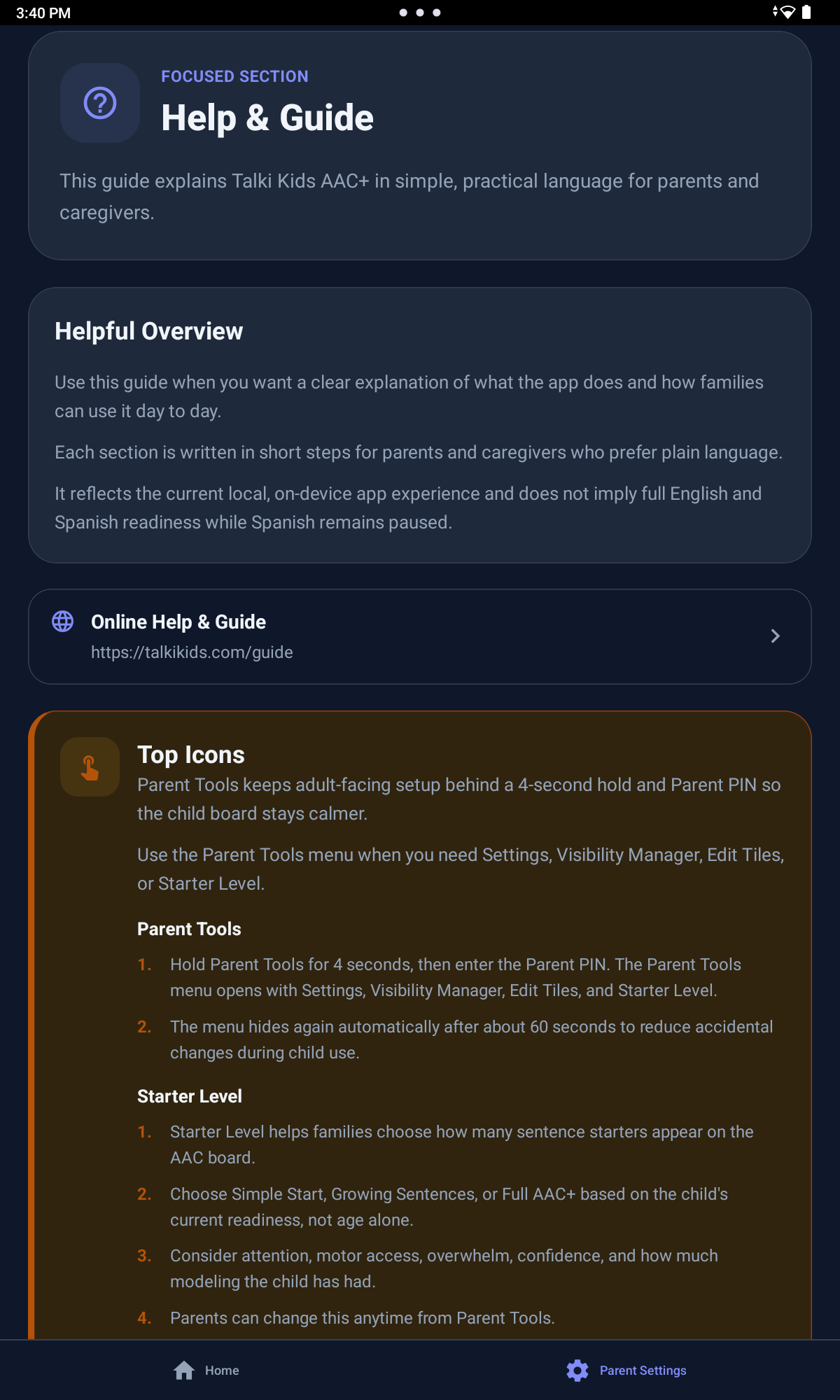
The in-app Help & Guide can point caregivers back to https://talkikids.com/guide for additional setup help.

Talki Kids AAC+ Help and Guide parent settings screen
Talki Kids AAC+ Safety and Access settings screen

Caregiver guidance

How adults can support communication

Adults make the app more useful by modeling without pressure, waiting, and responding to the message.

Helpful ways to support the child:

  • Start with a small, useful board.
  • Keep urgent needs easy to find.
  • Model the app without pressure.
  • Give the child time to respond.
  • Accept the AAC message as communication.
  • Keep the layout predictable.
  • Use familiar pictures when helpful.
  • Review hidden categories and tiles as the child grows.
  • Use Social Scripts during real situations.
  • Use Free Talk when the child needs to say something unique.

The goal is not to force speech. The goal is to give the child more ways to be understood.

19

Tips for Parents

  • Start small and keep the first layout easy to scan.
  • Keep the layout consistent so the child can build familiarity.
  • Give time before repeating a prompt or moving the device.
  • Model the app without pressure.
  • Do not require speech after a child communicates with AAC.
  • Celebrate communication attempts, not only complete phrases.
  • Add or replace tile pictures where supported when familiar images would help.
  • Review hidden categories as the child grows.
  • Keep urgent needs easy to access.
  • Use Social Scripts for real situations before, during, or after they happen.
  • Use Free Talk when the child needs a unique message.

Quick help

Troubleshooting

When something is not working, start with one small adjustment. These are common places to check.

The child seems overwhelmed.

Hide extra categories or tiles for now. Keep the most important daily choices visible and add more back gradually.

The child cannot find a tile.

Use categories, soft visual separators, and fewer visible tiles. Hide unused choices so the board is easier to scan.

The child needs a phrase that is not available.

Use Free Talk, Typing Keyboard, Alphabet Board, or My Thoughts for messages that are more specific than preset tiles.

The Social Scripts level looks wrong.

Check the level indicator and parent settings so the active level matches what the child needs right now. More to Say suggestions stay aligned with the selected Social Scripts level.

The child needs school messages.

Use the School category for classroom needs, adult support, supplies, restroom, water, help, breaks, and routines.

Urgent communication is hard to reach.

Keep the Needs category visible, simple, and easy to access. Review it before giving the device to the child.

Caregiver reminder

Safety and Privacy Reminder

Talki Kids AAC+ is local-first. Caregivers should enter only information they are comfortable storing on the device, and phone or address details should only be shown intentionally.

Before giving the device to the child, review what the child can see, use Parent PIN for adult controls, and use Visibility Manager to simplify the board when needed.

20

Important Note

Talki Kids AAC+ is a communication support tool. It is not a medical device and does not replace professional medical, therapeutic, educational, emergency, or legal guidance.